

Overview
When enabled, Elementary automatically streams your workspace’s audit logs (user activity logs and system logs) to your GCS bucket using the Google Cloud Storage API. This allows you to:- Store logs in your own GCS bucket for long-term retention
- Integrate logs with BigQuery, Dataflow, or other Google Cloud analytics services
- Maintain full control over log storage and access policies
- Process logs using Google Cloud data processing tools
- Archive logs for compliance and audit requirements
Prerequisites
Before configuring log streaming to GCS, you’ll need:-
GCS Bucket - A Google Cloud Storage bucket where logs will be stored
- The bucket must exist and be accessible
- You’ll need the bucket path (e.g.,
gs://my-logs-bucket)
-
Authentication - Either a Google Cloud service account or a Workload Identity Federation setup, with the Storage Object User (
roles/storage.objectUser) role granted on the bucket. See Authentication methods below for both options.
Authentication methods
Elementary supports two authentication methods for GCS. Pick the one that fits your security model:- Service account — create a service account, download its JSON key, and upload the key to Elementary. Simplest to set up.
- Workload Identity Federation (WIF) — Elementary authenticates from its AWS role through a federated identity. No long-lived credentials are stored in Elementary.
- Service account
- Workload Identity Federation
- Go to Google Cloud Console > IAM & Admin > Service Accounts and create a service account (or select an existing one).
-
Grant the service account the Storage Object User (
roles/storage.objectUser) role on your GCS bucket. -
Generate a JSON key for the service account:
- Select your service account.
- Click the three dots menu and select ‘Manage keys’.
- Click ‘ADD KEY’ and select ‘Create new key’.
- Choose ‘JSON’ format and click ‘CREATE’. The JSON file downloads automatically.
- You will upload this JSON key to Elementary in the connection form below, in the Service account file field.
Configuring Log Streaming to GCS
-
Navigate to the Logs page:
- Click on your account name in the top-right corner of the UI
- Open the dropdown menu
- Select Logs
- In the External Integrations section, click the Connect button
- In the modal that opens, select Google Cloud Storage (GCS) as your log streaming destination
-
Enter your GCS configuration:
- Bucket Path: The full GCS bucket path (e.g.,
gs://my-logs-bucket) - Authentication method: Use the toggle to select Service account or Workload Identity Federation, matching the method you set up in Authentication methods above.
- Service account file (Service account method) or WIF credential file (Workload Identity Federation method): Upload the JSON file you prepared.
- Bucket Path: The full GCS bucket path (e.g.,
- Click Save to enable log streaming
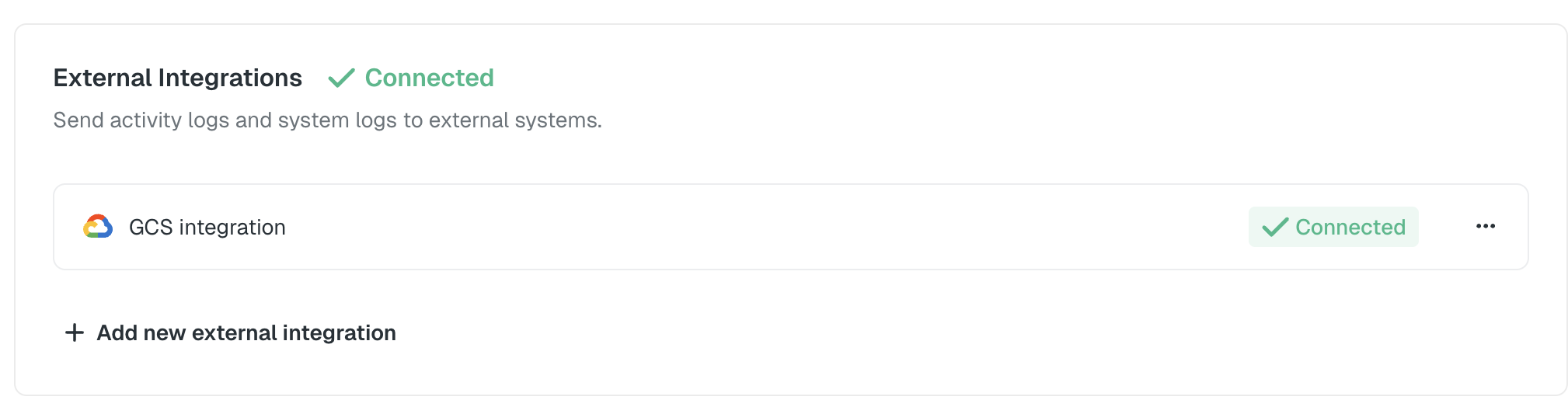
The log streaming configuration applies to your entire workspace. Both user activity logs and system logs will be streamed to your GCS bucket in batches.
Log Batching
Logs are automatically batched and written to GCS files based on the following criteria:- Time-based batching: A new file is created every 15 minutes
- Size-based batching: A new file is created when the batch reaches 100MB
File Path Format
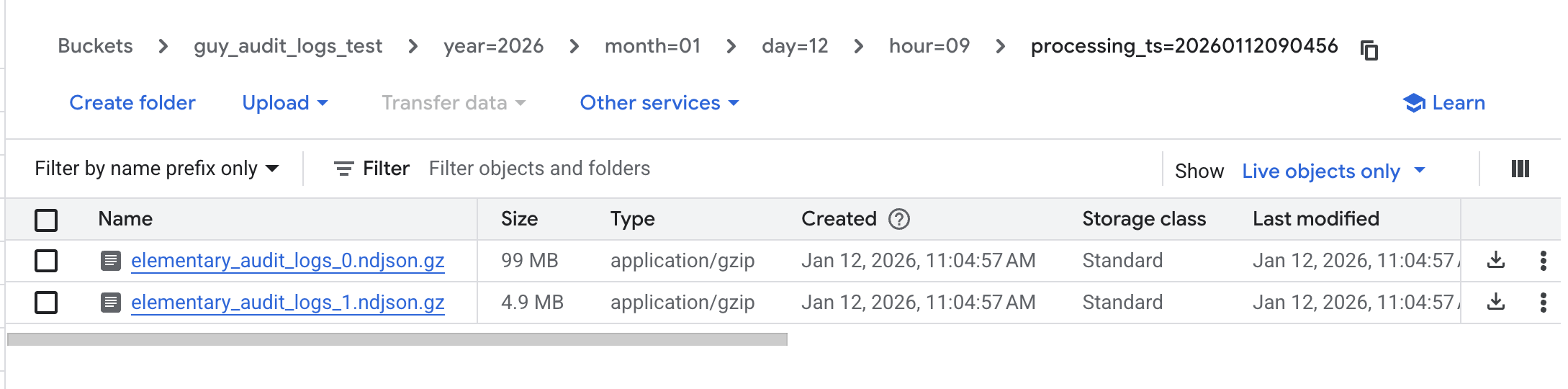
Logs are stored at the root of your bucket using a Hive-based partitioning structure for efficient querying and organization:{log_type}: Eitheraudit(for user activity logs) orsystem(for system logs){YYYY-MM-DD}: Date in ISO format (e.g.,2024-01-15){HH}: Hour in 24-hour format (e.g.,14){timestamp}: Unix timestamp when the file was created{batch_id}: Unique identifier for the batch
Example File Paths
- Efficiently query logs by date and hour using BigQuery or other tools
- Filter logs by type (
auditorsystem) - Process logs in parallel by partition
Log Format
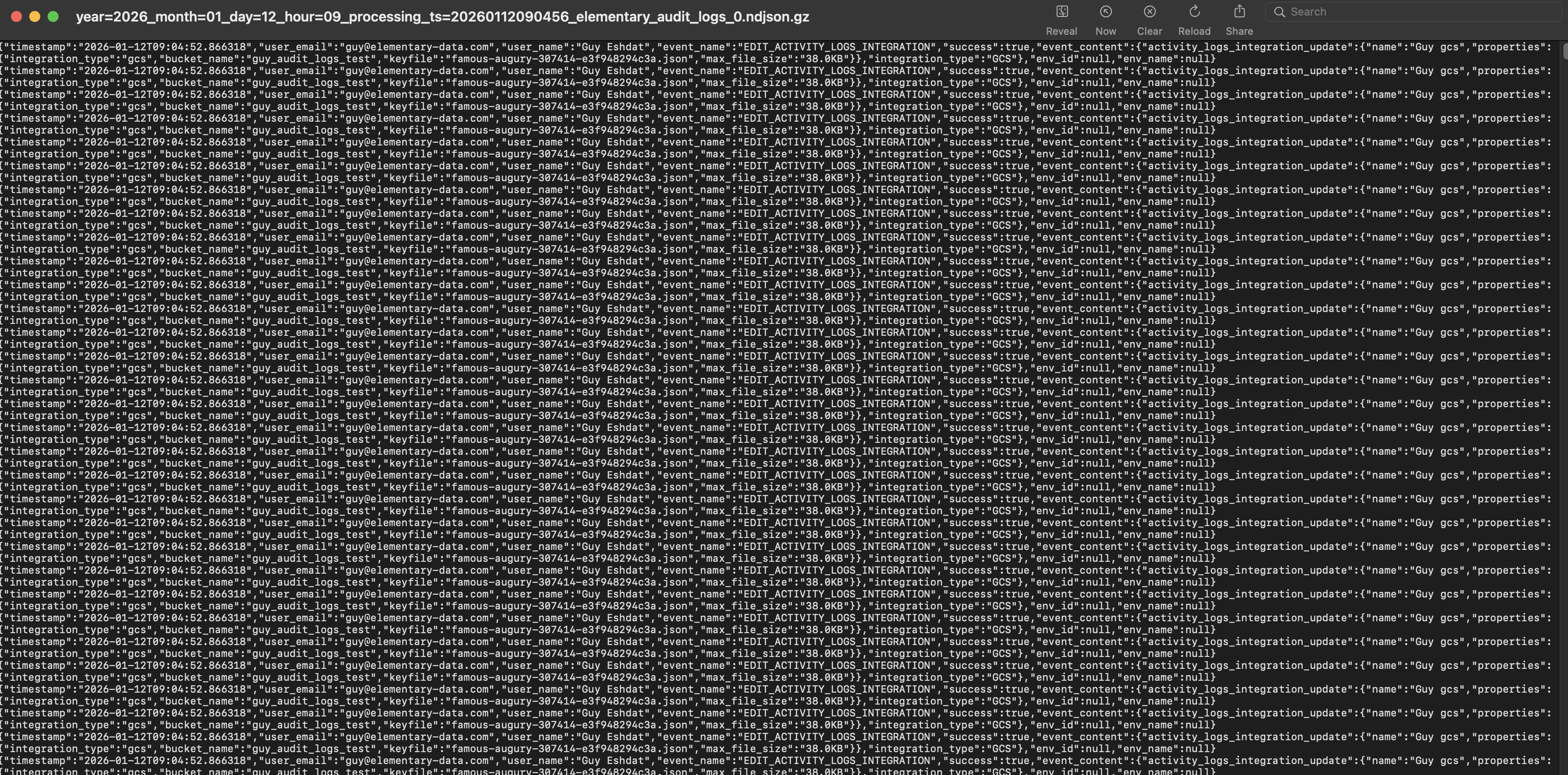
Logs are stored as line-delimited JSON (NDJSON), where each line represents a single log entry as a JSON object.User Activity Logs
Each user activity log entry includes:System Logs
Each system log entry includes:Field Descriptions
timestamp: ISO 8601 timestamp of the event (UTC)log_type: Either"audit"for user activity logs or"system"for system logsevent_name: The specific action that was performed (e.g.,user_login,create_test,dbt_data_sync_completed)success: Boolean indicating whether the action completed successfullyuser_email: User email address (only present in audit logs)user_name: User display name (only present in audit logs)env_id: Environment identifier (empty string for account-level actions)env_name: Environment name (empty string for account-level actions)event_content: Additional context-specific information as a JSON object
Disabling Log Streaming
To disable log streaming to GCS:- Navigate to the Logs page
- In the External Integrations section, find your GCS integration
- Click Disable or remove the GCS configuration
- Confirm the action