

Choose an authentication method
Elementary supports two authentication methods for BigQuery. Pick the one that fits your security model:- Service account — create a service account, download its JSON key, and upload the key to Elementary. Simplest to set up.
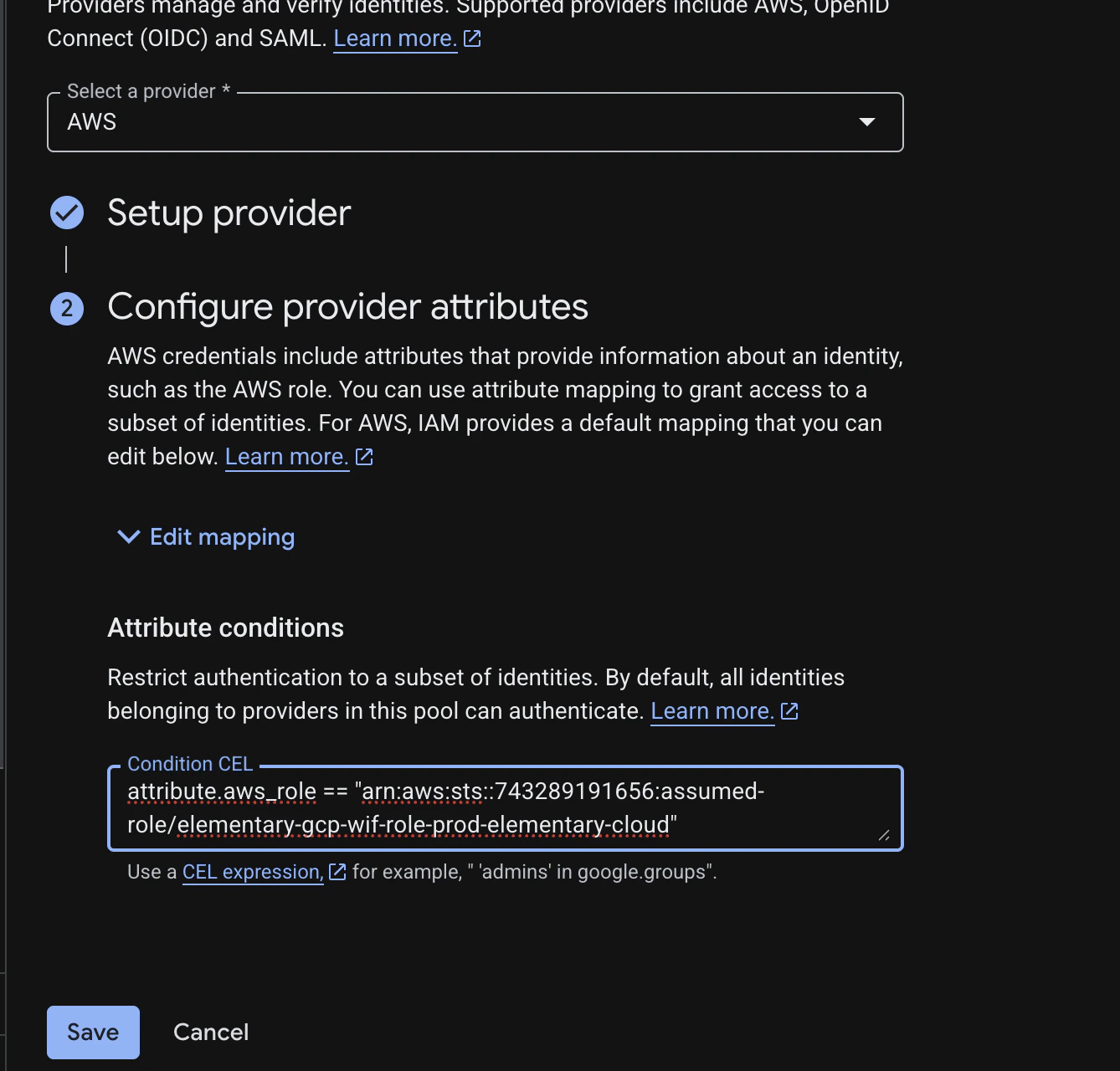
- Workload Identity Federation (WIF) — Elementary authenticates from its AWS role through a federated identity. No long-lived credentials are stored in Elementary.
- Service account
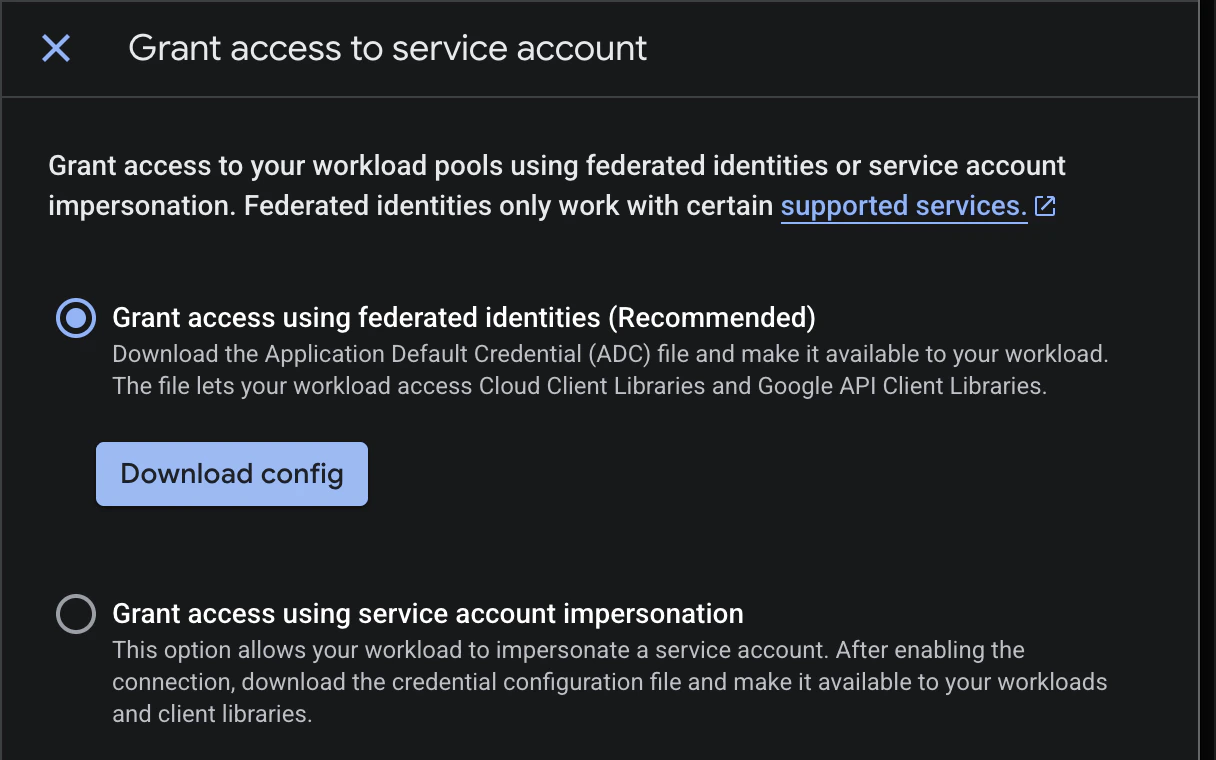
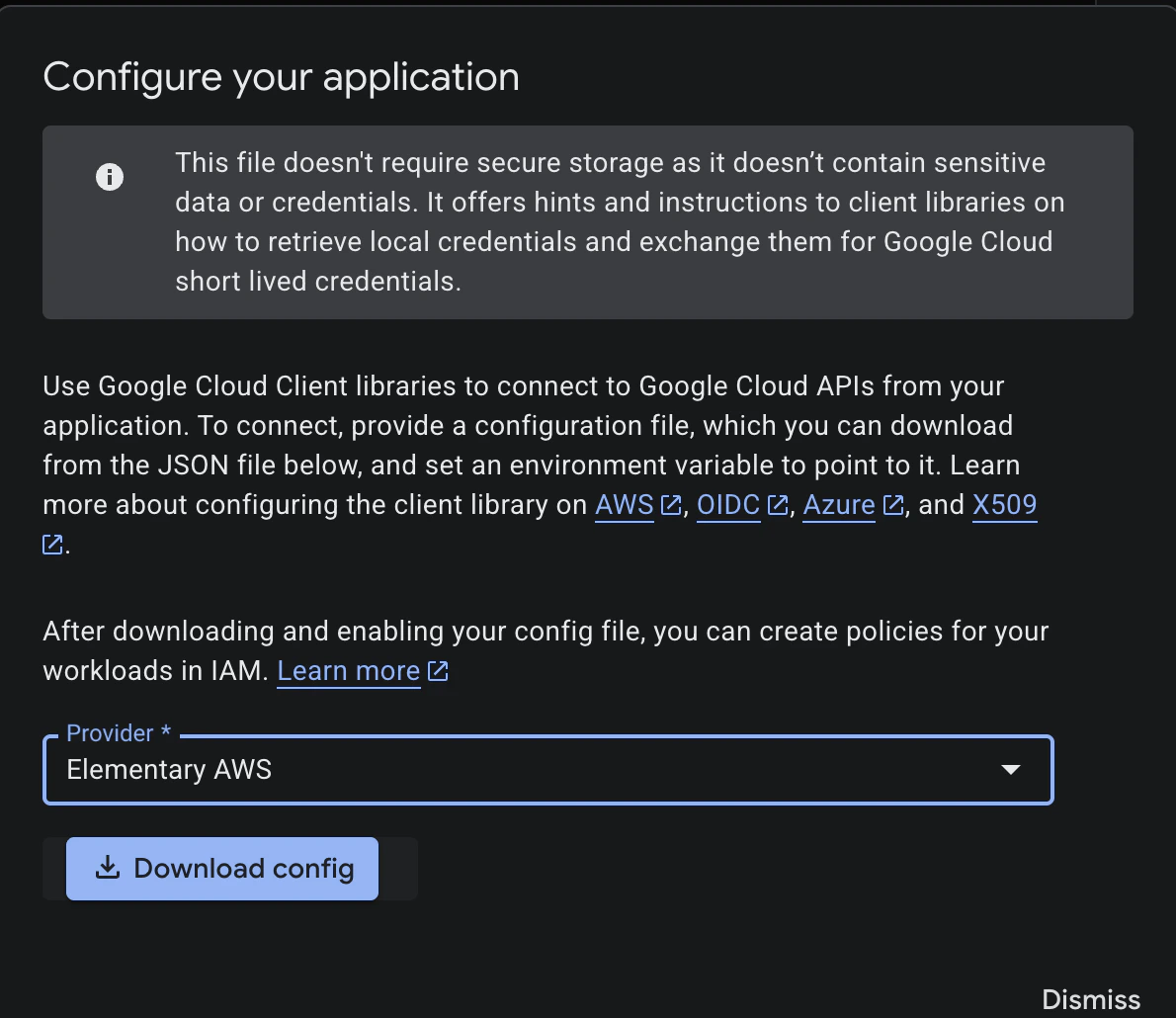
- Workload Identity Federation
Create service account:
- In the Cloud Console, go to: IAM & Admin > Service Accounts
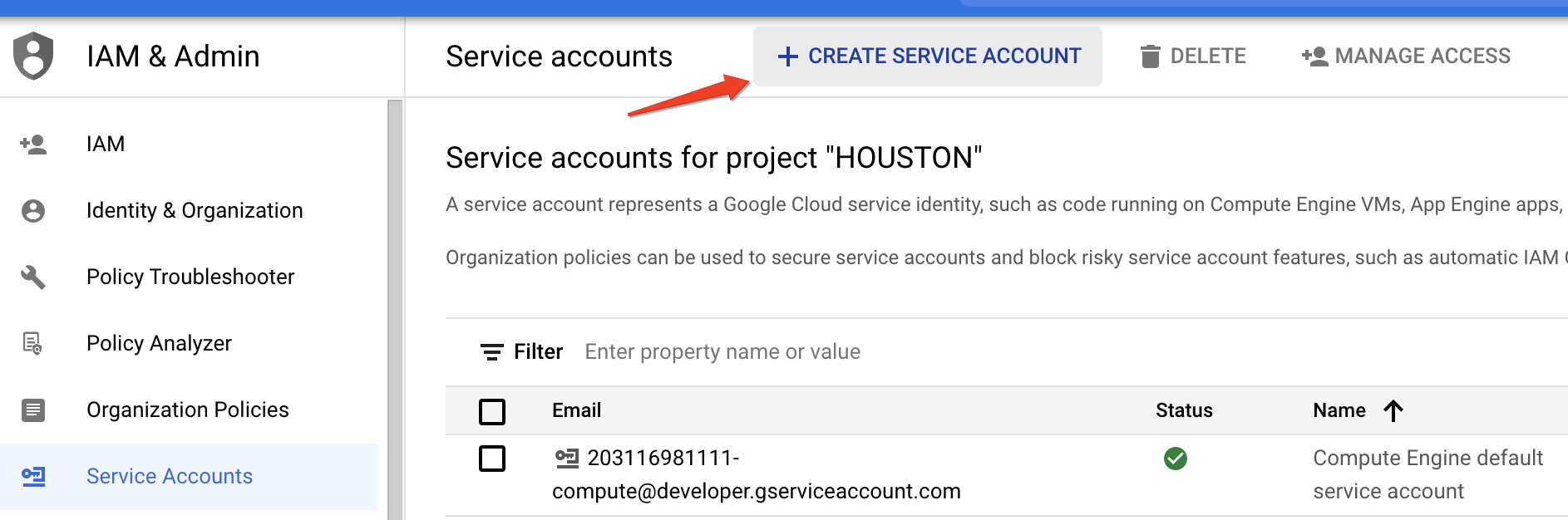
- Click on ‘CREATE SERVICE ACCOUNT’
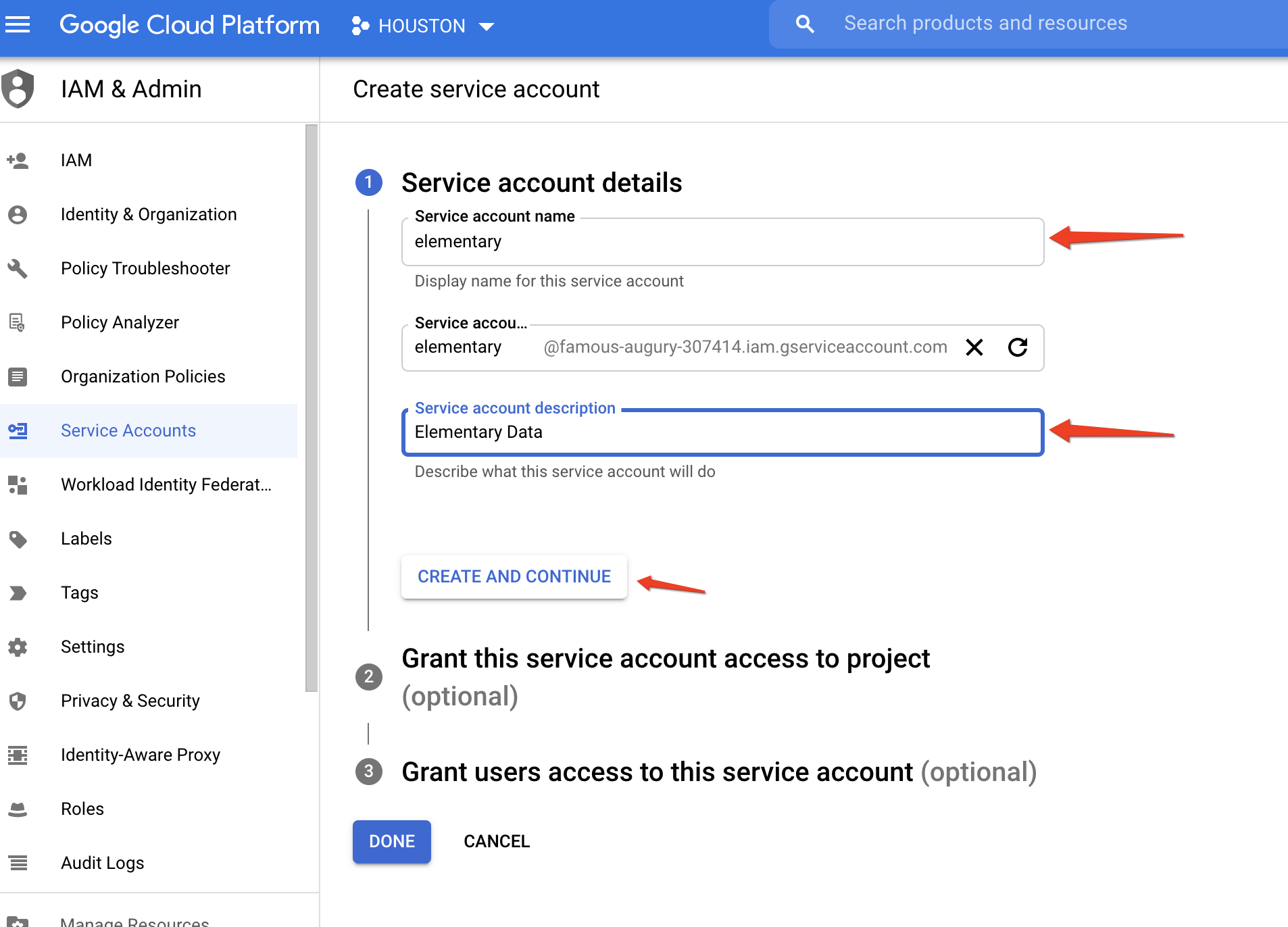
- Fill in the service account name (‘elementary’) and account description (‘Elementary Data’) and click ‘CREATE AND CONTINUE’:
- Now we need to configure the relevant permissions for this new service account. Select the following role: BigQuery Job User (you will need to grant read access to specific datasets later).
- The last step is optional, skip it and press done.
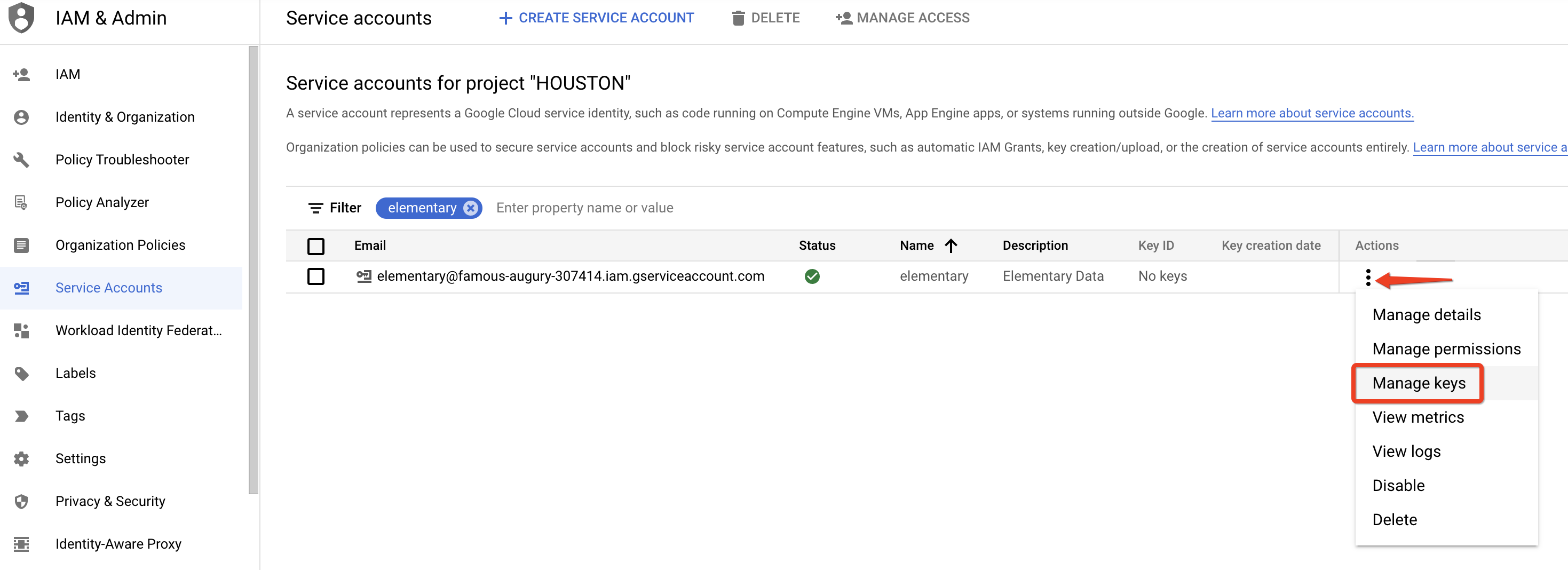
- Press on the dots icon to the right of your screen for your new service account and select ‘Manage keys’:
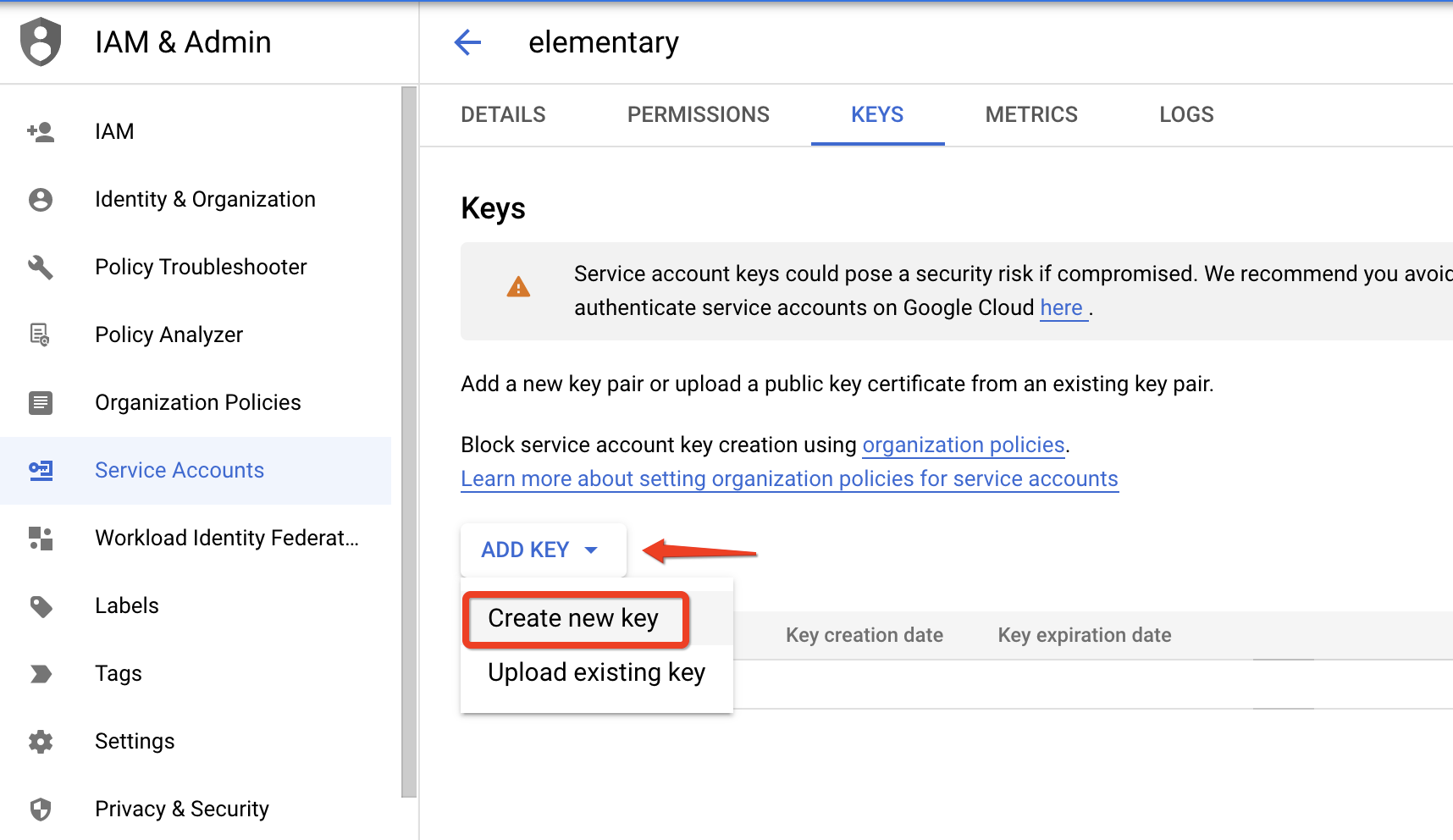
- Press on ‘ADD KEY’ and select ‘Create new key’:
- Use the ‘JSON’ option radio button and press ‘CREATE’:
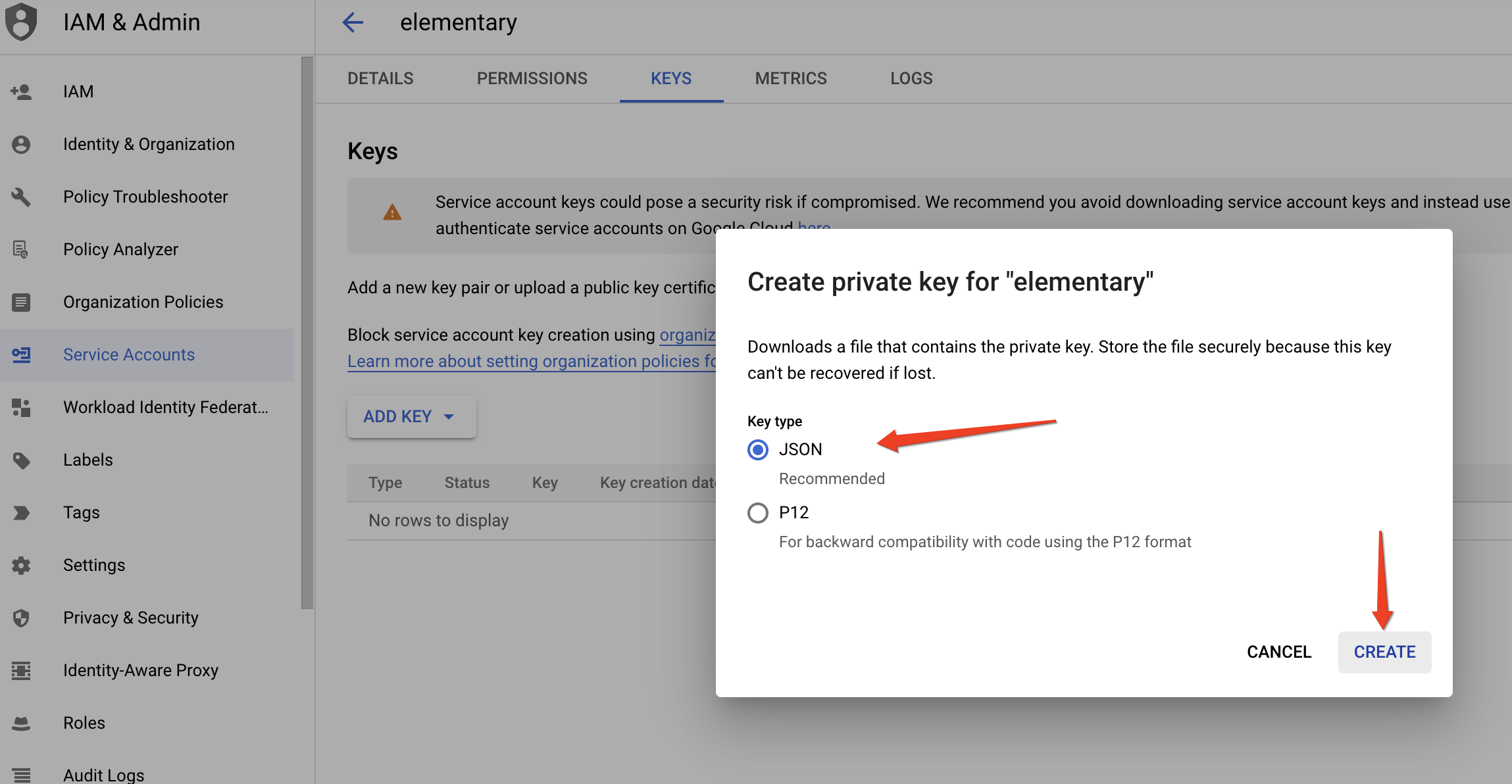
- This will automatically generate and download a JSON file with your private key information for this service account. This JSON file provides the credentials to programmatically connect and work with your BigQuery environment.
Grant service user access to specific datasets
In order for a service user to work with Elementary cloud, it requires the following permissions:- Role “BigQuery Data Viewer” on your Elementary dataset.
- Roles “BigQuery Metadata Viewer”, “BigQuery Resource Viewer” on the entire project and any external sources it is referencing.
- Go to your project in BigQuery console
- In the “Explorer” tab, find your desired dataset.
- Click on the three dots icon next to the dataset name, then Share.
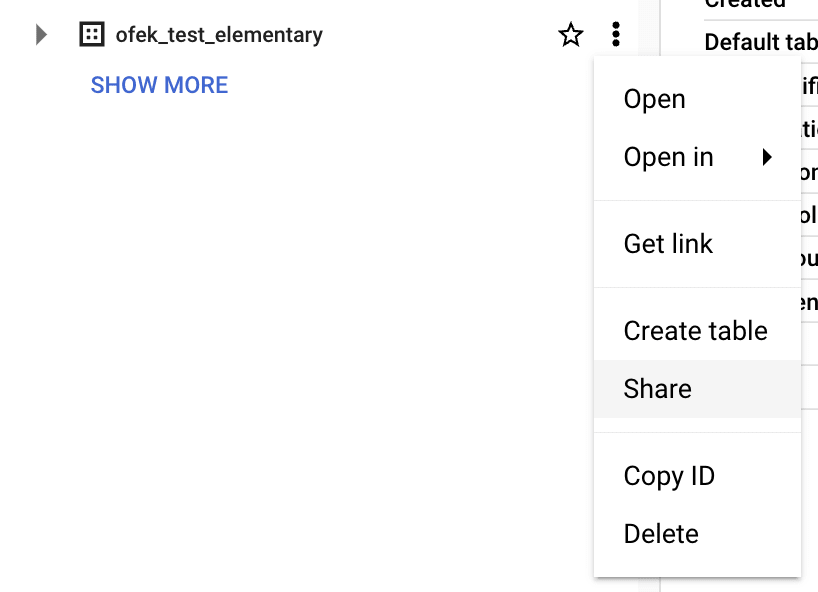
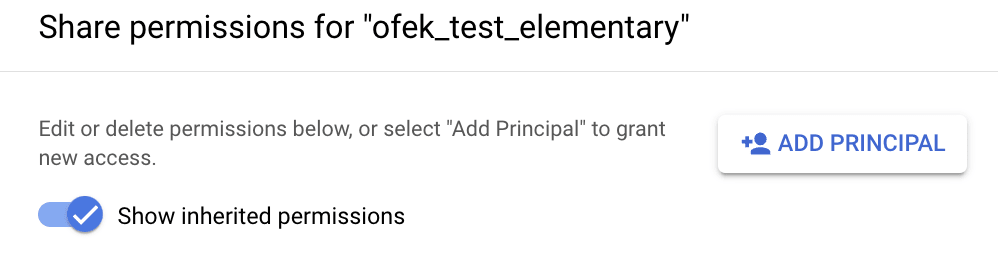
- Click the “ADD PRINCIPAL” button on the top right corner.
- Fill out the form:
- In the “New principals” textbox, write the email address of your user.
- In the “Select a role” dropdown menu, choose the desired role (BigQuery Data Viewer for your Elementary dataset, BigQuery Metadata Viewer, BigQuery Resource Viewer for your dbt dataset).
- Click “Save”.
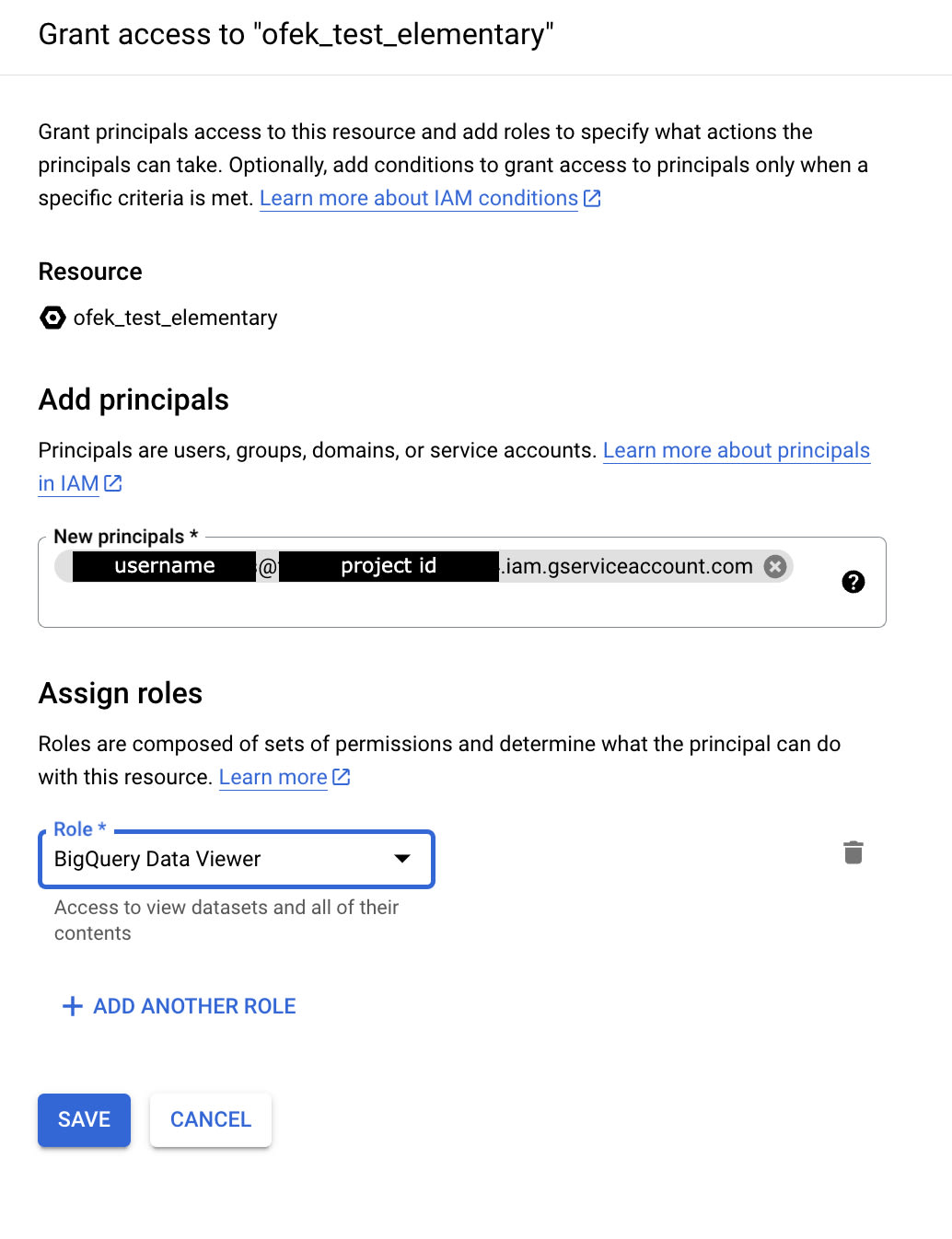 Make sure to grant the correct access to your Elementary dataset and your dbt dataset.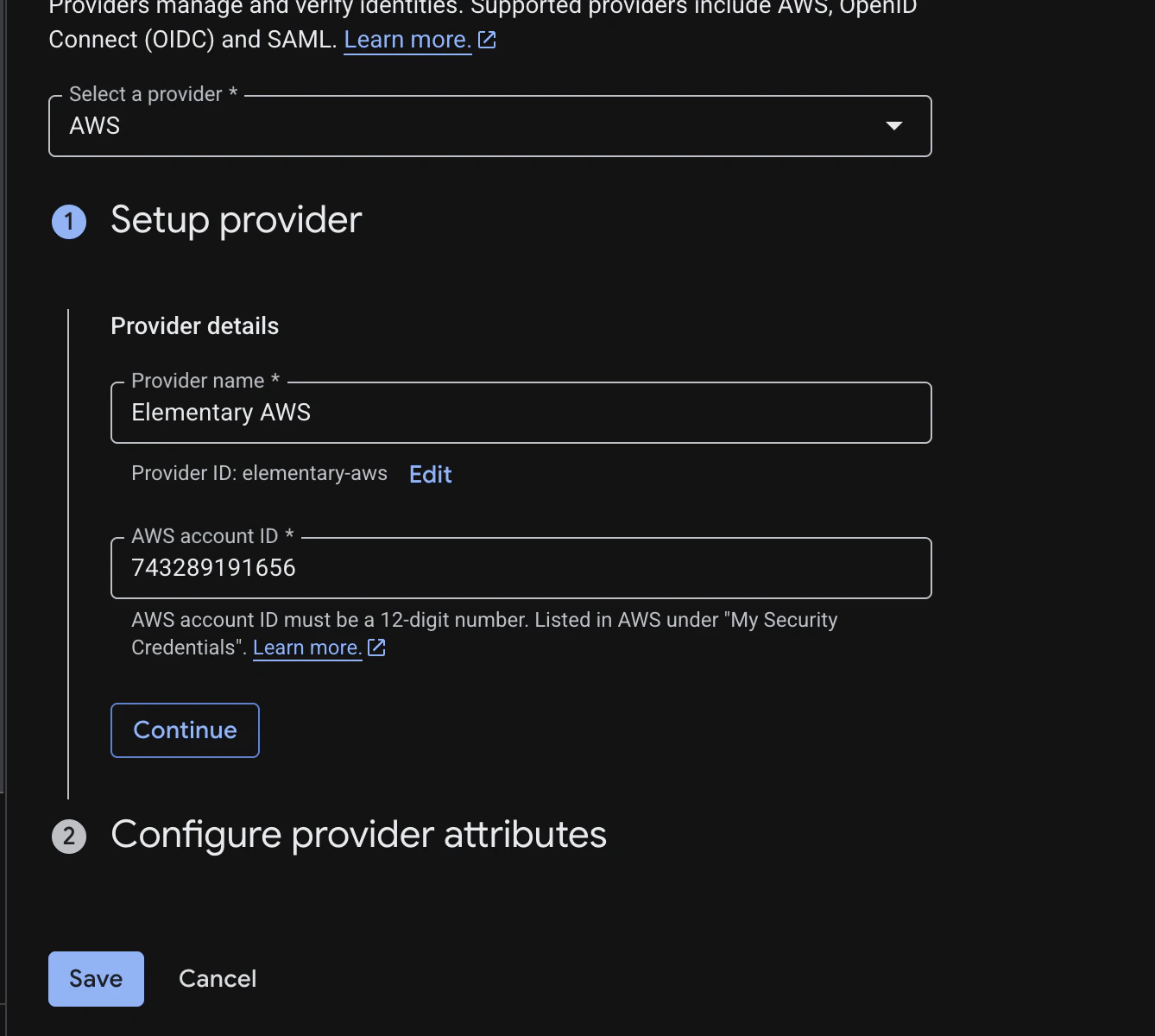
Permissions and security
Elementary cloud doesn’t require read permissions to your tables and schemas, but only the following:- Read-only access to the elementary schema.
- Access to read metadata in information schema and query history, related to the tables in your dbt project.
Fill the connection form
Use the Authentication method toggle at the top of the form to select either Service account or Workload Identity Federation, matching the method you set up above. The credentials upload field changes based on your selection:- Service account file (Service account method): the service account JSON key file you downloaded.
- WIF credential file (Workload Identity Federation method): the external account JSON configuration file you downloaded from the identity pool.
- Project: The name of your BigQuery project.
- Elementary dataset: The name of your Elementary dataset. Usually
[dataset name]_elementary. - Location: Use this field to configure the location of BigQuery datasets as per the BigQuery documentation.
Add the Elementary IP to allowlist
Elementary IP for allowlist:3.126.156.226